-
 Microsoft Copilot AI Chatbot to Get New Features, Will Complete and Rewrite User Prompts9 May 2024
 -
Microsoft’s Xbox Is Planning More Cuts After Closing Down Bethesda Studios9 May 2024
-
Microsoft Shuts Down Hi-Fi Rush Developer Tango Gameworks, Redfall Maker Arkane Austin, Other Bethesda Studios8 May 2024
-
Microsoft MAI-1 AI Model With 500 Billion Parameters Could Soon Be Unveiled: Report7 May 2024
-
Microsoft Finds Major Security Flaw ‘Dirty Stream’ in Android Apps Totalling Billions of Downloads6 May 2024

- Home
- Laptops
- Laptops Features
- 8 things to help you get started with Windows 8
8 things to help you get started with Windows 8
By Associated Press | Updated: 26 October 2012 13:04 IST
Advertisement
With the launch of Windows 8, buyers are about to discover a computing experience unlike anything they've seen before. Here's a guide to getting past some of the hurdles.
The main thing to know is that Windows 8 is designed especially for touch-screen computers, to make desktops and laptops work more like tablets. It is Microsoft's way of addressing the popularity of tablets, namely the iPad. But Windows 8 will work with mouse and keyboard shortcuts, too. It'll take some getting used to, though.
There are two versions of Windows 8, or more precisely, there's Windows 8 and there's Windows RT. They look the same, but they run on different processing chips. Windows 8 runs on standard chips from Intel and AMD and is the version you'd get if you're upgrading your home desktop or notebook PC. Windows RT is the version for light, small tablets and laptop-tablet hybrids.
Windows 8 will run programs written for older versions of Windows. Windows RT won't. It's limited to applications specifically written for it and available through Microsoft's store. (As a consolation, a version of Microsoft Office is included free on Windows RT devices).
Here are some tips on how to navigate the new Windows:
1) When you start a Windows 8 machine, you're greeted with a screen that shows the time and a pretty picture. To get past it with a touch-screen device, swipe upwards with your finger from the bottom edge of the screen. If you have a keyboard, hit any key.
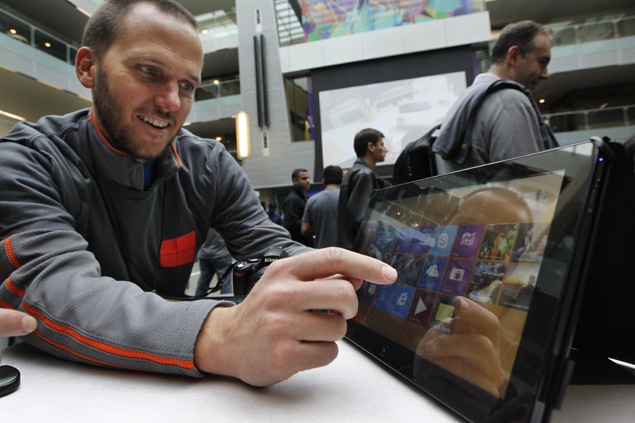
2) Next, you'll see a mosaic of Live Tiles, each representing an application. Programs specifically written for Windows 8 will run in this new environment, which is unofficially nicknamed Metro. Each application fills the screen when you run it. Applications written for older Windows versions will open up in something that looks very much like the old Windows Desktop environment. You can switch back and forth between Metro and the new Desktop, though Microsoft wants people to eventually use only Metro.
3) The Desktop screen lacks a Start button, so it's hard to start programs from there. Microsoft's idea is that users should learn to go to the Metro tiles to start programs or access settings, even if many programs, including some Windows utilities, will open up in Desktop. To get back to the tiled Start screen with a mouse or touchpad, move the mouse cursor to the top right corner of the screen, then swipe it down to the "Start" icon that appears. If you have a touch screen, reveal the Start icon by swiping in from the right edge of the screen.
4) In the Desktop environment, you can glance at the Taskbar to see which Desktop programs are running. If you're a mouse or touchpad user in Metro and want to see what's running, you have to know this trick: Move the cursor into the top left corner of the screen, then drag it down along the left edge of the screen. If you have a touch screen, swipe in from the left edge, then quickly swipe back in.
5) Neither environment will show you programs that are running in the other environment, but if you have a touch screen, swiping in from the left side of the screen lets you jump between open applications. The "Alt-Tab" combination does the same thing with a keyboard, in case you aren't using a touch screen.
6) There are two versions of Internet Explorer, one for each environment. A Web page you open in one doesn't appear in the other, so if you're trying to find your way back to a page, it helps to remember which browser you were using.
7) When using Metro on a touch screen, you close a program by first swiping your finger down from the top edge of the screen. That shrinks the window. Then you swipe your finger down to the bottom edge of the screen. Don't stray to the right or left edges of the screen, or the app will end up "docked" in a column along that edge. You can perform the same action with a mouse cursor by clicking and dragging from the top edge of the screen, but using the old "Alt-F4" command is easier.
8) In the Desktop version of Internet Explorer, you can see at a glance which pages you have open in "tabs." In Metro, each Web page fills the screen, leaving no room for tabs.
To see which other pages are open on a touch-screen computer, you swipe your finger down from the top of the screen to reveal thumbnails of the other windows. Don't sweep too far, or you'll shrink the window instead.
If you're using a mouse in Metro, you right-click anywhere on the screen to reveal the tabs. Of course, this means right-clicking no longer does any of things it can be used for in previous versions of Windows, such as letting you open a link in a new tab.
When Microsoft introduced Windows 95, some people thought it was amusing and counterintuitive that the procedure for shutting down the computer began with the "Start" button. In Windows 8, that incongruity is gone along with the Start button, but shutting down with a mouse or touchpad isn't obvious either. Move the cursor into the top right corner of the screen. A menu will pop out. Sweep down to the "Settings" button that appears, and click it. Then click "Power," then "Shut down." If you're on a touch screen, start by swiping in from the right edge of the screen, then tap "Settings."
Comments
For the latest tech news and reviews, follow Gadgets 360 on X, Facebook, WhatsApp, Threads and Google News. For the latest videos on gadgets and tech, subscribe to our YouTube channel. If you want to know everything about top influencers, follow our in-house Who'sThat360 on Instagram and YouTube.
Related Stories




Advertisement
Follow Us




-

00:30
Sponsored | Galaxy A55 | A35 5G: Awesome Camera | Ft. #ShanayaKapoor & #RohanGurbaxani -
01:23
Google Wallet Launched in India: All You Need to Know -
02:17
Does a Mysterious Ninth Planet Exist Beyond Neptune? -
14:05
Vivo V30 Pro Review: Focussed on Photography -
15:01
Tech With TG: MAMI Film Festival and the Rise of Mobile Filmmaking
Popular on Gadgets
- AI
- iPhone 16 Leaks
- Apple Vision Pro
- Oneplus 12
- iPhone 14
- Apple iPhone 15
- OnePlus Nord CE 3 Lite 5G
- iPhone 13
- Xiaomi 14 Pro
- Oppo Find N3
- Tecno Spark Go (2023)
- Realme V30
- Best Phones Under 25000
- Samsung Galaxy S24 Series
- Cryptocurrency
- iQoo 12
- Samsung Galaxy S24 Ultra
- Giottus
- Samsung Galaxy Z Flip 5
- Apple 'Scary Fast'
- Housefull 5
- GoPro Hero 12 Black Review
- Invincible Season 2
- JioGlass
- HD Ready TV
- Laptop Under 50000
- Smartwatch Under 10000
- Latest Mobile Phones
- Compare Phones
Latest Gadgets
- Realme Realme GT Neo 6
- Nokia 3210 4G
- Vivo Y18e
- Vivo Y18
- Vivo Y38 5G
- Nokia 235 4G (2024)
- Nokia 225 4G (2024)
- Nokia 215 4G (2024)
- Dell Alienware X16 R2
- Lenovo IdeaPad Pro 5i
- Apple iPad Pro 13-inch (2024) Wi-Fi
- Apple iPad Pro 13-inch (2024) Wi-Fi + Cellular
- boAt Storm Call 3
- Lava ProWatch Zn
- Samsung Samsung Neo QLED 8K Smart TV QN800D
- Samsung Neo QLED 4K Smart TV (QN90D)
- Sony PlayStation 5 Slim Digital Edition
- Sony PlayStation 5 Slim
- LG 1.5 Ton 3 Star Inverter Window AC (TW-Q18WUXA)
- Godrej 1.1 Ton 3 Star Inverter Split AC (SIC 13DTC3 WWB)

- About Us
- Sitemaps
- Feedback
- Archives
- Contact Us
- RSS
- Advertise
- Career
- Privacy Policy
- Ethics
- Editorial Policy
- Terms & Conditions
- Complaint Redressal
Download Our Apps
Available in Hindi
© Copyright Red Pixels Ventures Limited 2024. All rights reserved.


